

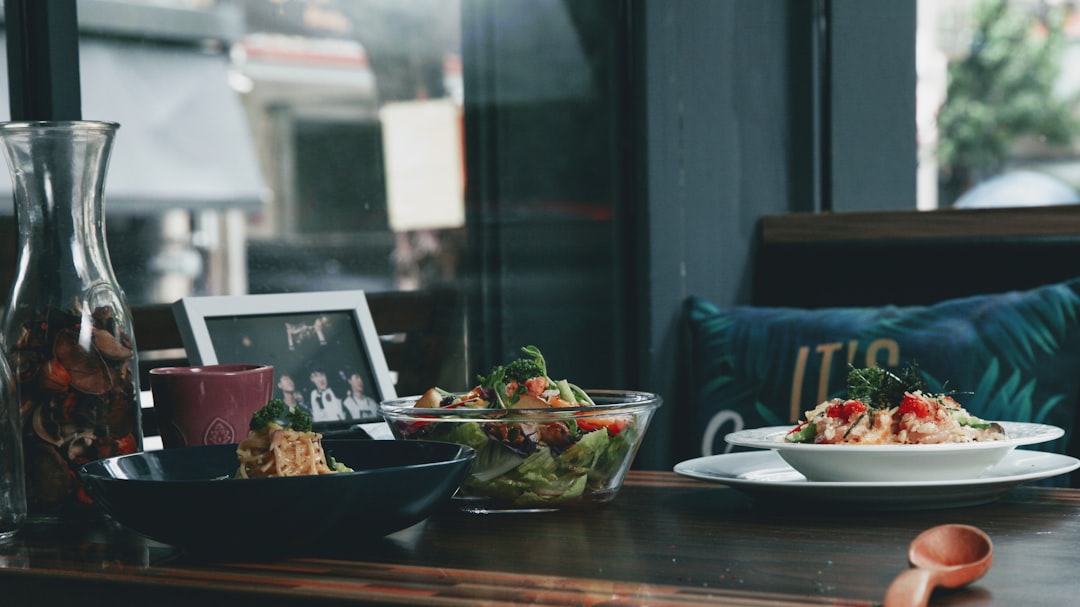
Canvas HTML Template restaurant demo addresses this directly with a purpose-built layout that covers every stage of the dining decision: discovery, appetite appeal, menu browsing, and location trust. If you are evaluating whether the Canvas restaurant demo fits your next project, this walkthrough covers the real structure, components, and customisation path, no invented features, no marketing fluff.
Key Takeaways
- The Canvas restaurant demo ships as
demo-restaurant.htmland uses a full-viewport Swiper slider as its hero, defined by the classslider-element swiper_wrapper min-vh-60 min-vh-md-100 include-header. - The demo covers the complete customer journey: hero storytelling, process section, food menu grid, dessert menu, brewery highlight, and location trust block.
- All colours theme through Bootstrap 5 CSS variables including Canvas’s own
--cnvs-themecolor, making brand changes a one-line edit. - Two primary CTAs, See All Menu and Our Service, are placed strategically to capture intent at different scroll depths.
- The demo is best suited for independent restaurants, bistros, and food-concept sites; large franchise chains with complex ordering systems will need additional back-end integration.
The Hero: Full-Viewport Swiper Slider
The first section sets the tone. The Canvas restaurant demo opens with a hero built on Swiper.js, wrapped in the class string slider-element swiper_wrapper min-vh-60 min-vh-md-100 include-header. On desktop this renders at 100 vh, the browser’s full visible height, collapsing to a minimum of 60 vh on smaller screens. The include-header modifier ensures the navigation sits flush over the slide imagery rather than pushing content down, a detail that matters enormously for food photography impact.
The opening headline is “Taste from Italy.”, short, evocative, and designed to be replaced with any cuisine identity. Swiper handles slide transitions through Canvas’s bundled plugins.min.js, so you do not need a separate library import. Swap slide images, update the headline copy, and the hero is production-ready.
<!-- Hero slider structure (simplified) -->
<section class="slider-element swiper_wrapper min-vh-60 min-vh-md-100 include-header">
  <div class="swiper-container">
    <div class="swiper-wrapper">
      <div class="swiper-slide" style="background-image: url('images/restaurant/slide-1.jpg');">
        <div class="container">
          <h2 class="display-3 fw-bold text-white">Taste from Italy.</h2>
          <a href="menu.html" class="button button-large">See All Menu</a>
        </div>
      </div>
    </div>
  </div>
</section>
Storytelling Sections: Welcome, Brewery, and Brand Identity
Below the hero, the demo layers three distinct brand narrative sections before reaching the menu. “Hello & Welcome.” introduces the restaurant’s voice with a generous text block, the right place to drop your founding story or chef biography. “Make your Chocolate.” adds a product-concept panel that works equally well for a signature dish or a unique in-house ingredient. “In-House Brewery” is a dedicated section that signals premium positioning and upsells beverages, a smart conversion move for any restaurant that offers craft drinks.
These sections all use Canvas’s standard two-column grid: image on one side, text and CTA on the other. Reordering them is a matter of moving the HTML blocks; no JavaScript is involved.
Process and Service: How We Work and Food Served Hot
The “How We Work” section functions as a trust-builder, it explains preparation standards, sourcing, or service philosophy in a visual step format. This is where you address the unspoken diner concern: is this place reliable? Pairing this with “Food Served Hot” reinforces freshness messaging and works as a conversion nudge for takeaway or delivery positioning.
The “Our Service” CTA button appears in this zone, routing visitors toward a dedicated services or reservation page. If your restaurant uses an third-party booking widget, this anchor is the logical hook point. For reservation form patterns, the techniques in 7 Bootstrap 5 Form Designs That Improve Conversions translate cleanly into the Canvas component structure.
The Food Menu Grid: Main Dishes and Desserts
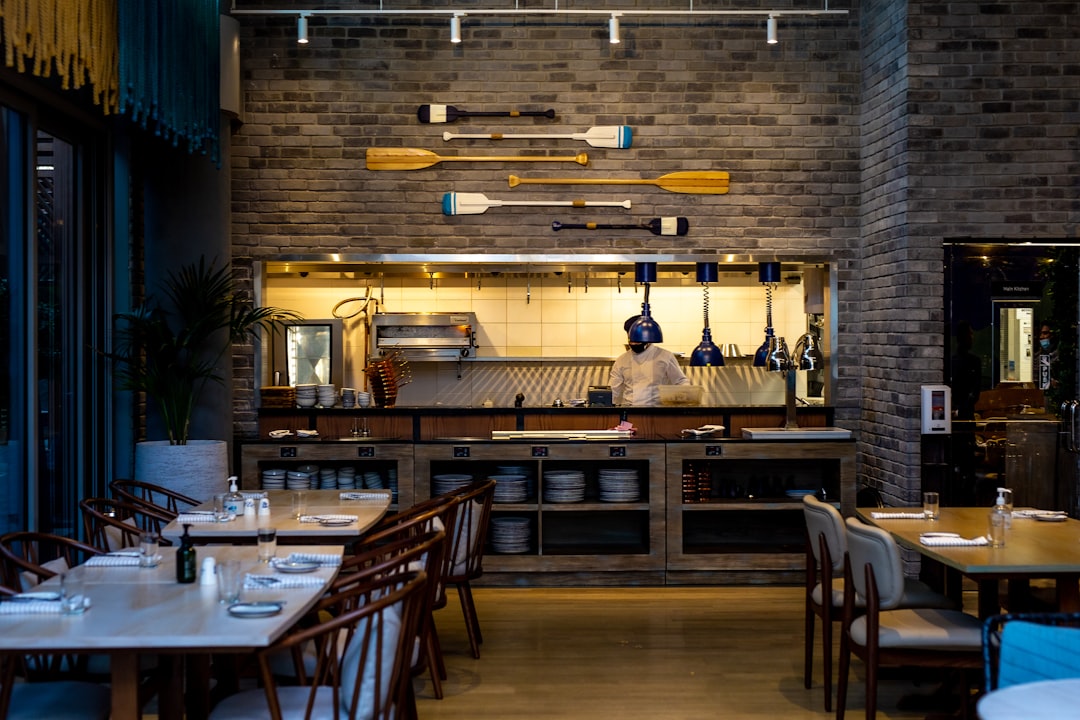
The “Our Food Menu” section is the commercial core of the demo. It presents eight main dishes in a structured grid:
- Multigrain Toast
- Prawn Mussels Plate
- Black Jumbo Burger
- Fried Chicken
- Smoothie Fruit Bowl
- Margarita Pizza
- Macaroni Pasta
- Chicken with Fries
- Chinese Noodle
Each card carries an image, dish name, and price placeholder, the minimum information a diner needs to make an ordering decision. The “See All Menu” CTA at the section base routes to a full menu page, preventing the single-page layout from becoming overwhelming.
The dessert sequence follows a different visual rhythm. Three atmospheric text overlays, “Feel the Taste.”, “Beautiful Location.”, and “Delicious Desserts.”, act as full-width visual breaks with supporting taglines. These are followed by the “Our Dessert Menu” grid showcasing Chocolate Cupcakes, Caramel Cake, Choco Strawberry Waffle, and Tuffle Cake. The separation of savoury and sweet menus into two distinct grid blocks is a genuine usability improvement over single-scroll menu pages.
Theming the menu card accent colour requires one CSS variable change:
:root {
  --cnvs-themecolor: #c0392b; / deep red for a classic Italian restaurant /
}This propagates through buttons, hover states, and border accents site-wide. For a deeper look at theming strategy, SCSS vs CSS Variables for Theming Bootstrap 5 covers when to use each approach and the trade-offs in maintainability.
Location and Atmosphere: Converting Browsers into Guests
The demo closes its persuasion arc with “Beautiful Location. Food Tastes Better when you are in Good Location.”, a full-width visual section that combines atmospheric photography with an address or map embed. This is the last conversion opportunity before a visitor leaves the page, and its placement is deliberate: by this point the visitor has seen the story, the process, the full menu, and the desserts. Location removes the final logistical objection.
For restaurants relying on foot traffic, this section should include a Google Maps embed or a static map image linked to directions. Canvas’s grid system handles both options without layout modification.
Customisation Path and Honest Limitations
The demo file is demo-restaurant.html and references Canvas’s shared asset pipeline: plugins.min.js for Swiper, lightbox, and utility plugins, and functions.bundle.js for sticky header, parallax, and scroll animations. Both files are included once in the base layout and serve all 50+ Canvas demos, so adding the restaurant demo to an existing Canvas project carries zero additional JavaScript overhead.
Where the demo works well:
- Independent restaurants, bistros, cafés, and food concepts launching a marketing presence.
- Projects where the ordering system is handled by a third-party platform (Toast, Square, OpenTable) and the website is the brand and discovery layer.
- Agencies building sites for multiple hospitality clients who need a solid, rebrandable starting point.
Where you will need additional work:
- Real-time online ordering with cart and payment, the demo is a static marketing layout, not an e-commerce system.
- Dynamic menu management without a CMS, if the menu changes weekly, you will want to pair this with a headless CMS or the WordPress REST API approach covered in How to Use the WordPress REST API with a Static HTML Front-End.
- Franchise multi-location sites, the single-page structure does not include location switchers or region-specific menu logic out of the box.
For food businesses adjacent to the restaurant niche, cafés, bakeries, specialty drink bars, the Canvas Coffee demo and Canvas Recipes demo offer alternative layouts that may better fit narrower product focuses. The restaurant demo is the most comprehensive food-service layout in the Canvas library, covering the widest range of menu categories and narrative sections.
You can review every section in context on the live Canvas restaurant demo before committing to the template.
Frequently Asked Questions
The restaurant demo (demo-restaurant.html) is included in the standard Canvas HTML Template purchase on ThemeForest. You receive all 50+ demos, including the restaurant layout, in a single download. There are no per-demo add-on fees.
Canvas bundles Swiper via plugins.min.js. The exact version shipped depends on the Canvas release you download; check the template changelog for the bundled library version. Because Swiper is compiled into the bundle, you should not load a second Swiper instance from a CDN, doing so causes conflicts with the slider initialisation in functions.bundle.js.
Yes. The “Our Service” CTA and the How We Work section provide natural anchor points for a reservation widget. You can embed third-party booking tools (OpenTable, Resy, or a custom form) directly into the section containers. Canvas’s grid layout accommodates embed codes without structural changes.
Update the --cnvs-themecolor CSS variable in your stylesheet or in a <style> block on the page. This single change propagates to buttons, hover states, and decorative accents throughout the template. For multi-colour brand systems, Canvas also exposes secondary and accent colour variables.
The demo does not include a PDF menu link by default. The menu sections are HTML grids. If you need a downloadable PDF, add a standard anchor tag pointing to a hosted PDF file, this requires no template modification beyond adding the link element to the relevant menu section.
Looking for a production-ready Bootstrap 5 HTML template? Browse Canvas Template demos and find the perfect starting point for your next project.
If you’re building with the Canvas HTML Template and want to ship production-ready Bootstrap 5 layouts faster, try Canvas Builder free, the visual builder that exports clean Canvas-ready markup in minutes.
Skip the setup and build it free
Spin up a complete Bootstrap 5 site, blog included, with Canvas Builder. No coding, no cost.

Rohit S
Rohit S builds Canvas at SemiColonWeb, the team behind the Canvas HTML Template, CanvasWP and CanvasBuilder AI.
More from the Canvas Blog