

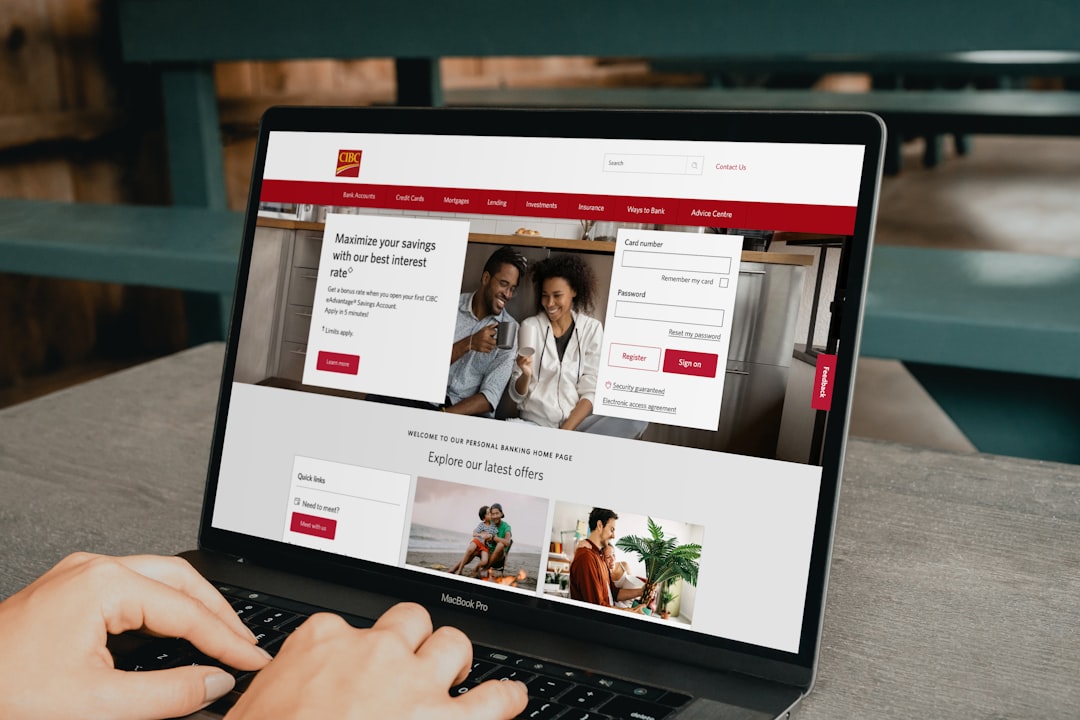
A portfolio website is often the first thing a potential client or employer sees. It needs to load fast, look sharp on every device, and make your work the centrepiece. Bootstrap 5 is one of the most practical frameworks available for getting exactly that result, without reinventing the wheel on every project.
In this tutorial you will build a complete, professional bootstrap 5 portfolio from scratch. Every section is covered: project structure, navigation, hero, work grid, about section, contact form, and deployment considerations. Real code is included throughout, and by the end you will have a solid html portfolio template you can extend or hand off to a client.
Key Takeaways
Key Takeaways
- Bootstrap 5 removes the jQuery dependency, making your portfolio leaner and faster out of the box.
- A well-structured HTML portfolio template should separate layout concerns (grid, spacing) from visual concerns (colours, typography) from the start.
- The Bootstrap 5 grid and flexbox utilities cover almost every layout need, no custom CSS grid is required.
- Accessibility and page speed are not afterthoughts; bake them in during the build phase.
- Tools like Canvas Template and CanvasBuilder give you a professional head start if you need to ship faster.
Why Bootstrap 5 Is the Right Choice for a Portfolio
Before writing a single line of HTML, it is worth understanding why Bootstrap 5 specifically makes sense for a portfolio project in 2026.
First, Bootstrap 5 dropped jQuery entirely. That means smaller payloads, no version conflicts, and modern JavaScript APIs throughout. Second, the utility-first philosophy that Tailwind popularised has heavily influenced Bootstrap 5’s expanded utility classes, you can build responsive layouts almost entirely in markup. Third, the component library (cards, modals, offcanvas, toasts) is production-tested and accessible by default, meaning you are not writing ARIA attributes from scratch.
For a portfolio specifically, the card component handles project thumbnails elegantly, the navbar component gives you a responsive header in minutes, and the grid system ensures your work looks equally strong on a 1440px desktop and a 375px phone.
If you are evaluating whether to start from a blank file or a premium template, check out Best Free Bootstrap 5 Templates for Agencies in 2026, it covers both options honestly and will help you decide how much boilerplate you want to handle manually.
Project Structure and Initial Setup
A clean file structure saves you hours of maintenance later. Here is the recommended layout for a standalone bootstrap 5 portfolio:
portfolio/
├── index.html
├── assets/
│   ├── css/
│   │   └── style.css
│   ├── js/
│   │   └── main.js
│   └── images/
│       ├── hero-bg.jpg
│       └── projects/
│           ├── project-1.jpg
│           └── project-2.jpg
└── favicon.ico
Now create your index.html base. Pull Bootstrap 5 from the CDN for speed during development, swap it for a local compiled version (or SCSS source) when you go to production. If you want to theme the template with custom brand colours, the approach described in How to Use SCSS Variables to Theme a Bootstrap 5 Site is the cleanest path forward.
<!DOCTYPE html>
<html lang="en">
<head>
  <meta charset="UTF-8" />
  <meta name="viewport" content="width=device-width, initial-scale=1.0" />
  <title>Jane Doe — Frontend Developer</title>
  <link
    href="https://cdn.jsdelivr.net/npm/bootstrap@5.3.3/dist/css/bootstrap.min.css"
    rel="stylesheet"
  />
  <link rel="stylesheet" href="assets/css/style.css" />
</head>
<body>

  <!-- Sections go here -->

  <script
    src="https://cdn.jsdelivr.net/npm/bootstrap@5.3.3/dist/js/bootstrap.bundle.min.js">
  </script>
  <script src="assets/js/main.js"></script>
</body>
</html>
Note the bootstrap.bundle.min.js, it includes Popper.js, which is required for dropdowns and tooltips.
Building a Sticky, Responsive Navbar
The navbar is the first component your visitor interacts with. Keep it minimal: your name or logo on the left, navigation links on the right, and a smooth collapse for mobile.
<nav class="navbar navbar-expand-lg navbar-light bg-white sticky-top shadow-sm">
  <div class="container">
    <a class="navbar-brand fw-bold fs-4" href="#">Jane Doe</a>
    <button
      class="navbar-toggler"
      type="button"
      data-bs-toggle="collapse"
      data-bs-target="#mainNav"
      aria-controls="mainNav"
      aria-expanded="false"
      aria-label="Toggle navigation"
    >
      <span class="navbar-toggler-icon"></span>
    </button>
    <div class="collapse navbar-collapse" id="mainNav">
      <ul class="navbar-nav ms-auto gap-lg-3">
        <li class="nav-item"><a class="nav-link" href="#work">Work</a></li>
        <li class="nav-item"><a class="nav-link" href="#about">About</a></li>
        <li class="nav-item"><a class="nav-link" href="#contact">Contact</a></li>
      </ul>
    </div>
  </div>
</nav>
sticky-top keeps the nav visible as the user scrolls. ms-auto pushes the link list to the right using Bootstrap’s margin-start auto utility, a flexbox trick covered in depth in Bootstrap 5 Flexbox: Alignment Utilities That Actually Work. The aria-label on the toggler button is a small but important accessibility touch.
Crafting a Hero Section That Converts
The hero is your 3-second pitch. It should communicate who you are, what you do, and give the visitor a clear next action.
<section class="hero d-flex align-items-center min-vh-100 bg-light">
<div class="container">
<div class="row align-items-center g-5">
<div class="col-lg-6">
<span class="badge bg-primary mb-3">Available for hire</span>
<h1 class="display-4 fw-bold lh-sm mb-4">
Frontend Developer &<br />UI Designer
</h1>
<p class="lead text-muted mb-4">
I build fast, accessible, and beautiful web experiences
using modern HTML, CSS, and JavaScript.
</p>
<div class="d-flex flex-wrap gap-3">
<a href="#work" class="btn btn-primary btn-lg">View My Work</a>
<a href="#contact" class="btn btn-outline-secondary btn-lg">Get in Touch</a>
</div>
</div>
<div class="col-lg-6 text-center">
<img
src="assets/images/hero-bg.jpg"
alt="Jane Doe, Frontend Developer"
class="img-fluid rounded-4 shadow-lg"
width="540"
height="540"
/>
</div>
</div>
</div>
</section>
A few things to notice here. The min-vh-100 class ensures the hero fills the viewport on first load. The d-flex align-items-center combination vertically centres the content. Explicit width and height attributes on the image reduce cumulative layout shift, which directly improves your Core Web Vitals score, a topic covered fully in Page Speed Optimisation for Bootstrap 5 HTML Templates.
Building the Portfolio Work Grid
This is the centrepiece of any bootstrap 5 portfolio. The goal is a clean, filterable grid of project cards that scales from one column on mobile to three or four on desktop.
<section id="work" class="py-6">
  <div class="container">
    <div class="text-center mb-5">
      <h2 class="fw-bold">Selected Work</h2>
      <p class="text-muted">A curated selection of recent projects</p>
    </div>
    <div class="row g-4">

      <div class="col-sm-6 col-lg-4">
        <div class="card border-0 shadow-sm h-100 overflow-hidden">
          <div class="card-img-wrap overflow-hidden">
            <img
              src="assets/images/projects/project-1.jpg"
              class="card-img-top img-fluid project-thumb"
              alt="E-commerce redesign project thumbnail"
              loading="lazy"
            />
          </div>
          <div class="card-body">
            <span class="badge bg-primary-subtle text-primary mb-2">UI Design</span>
            <h3 class="card-title h5 fw-semibold">E-Commerce Redesign</h3>
            <p class="card-text text-muted small">
              Full UX audit and visual redesign for a fashion retailer,
              resulting in a 34% increase in checkout completion.
            </p>
          </div>
          <div class="card-footer bg-transparent border-0 pt-0">
            <a href="#" class="btn btn-sm btn-outline-primary">View Case Study</a>
          </div>
        </div>
      </div>

      <!-- Repeat card structure for additional projects -->

    </div>
  </div>
</section>
The h-100 class on every card ensures uniform height within each row. loading="lazy" on images defers off-screen thumbnails, improving initial page load. The bg-primary-subtle and text-primary combination is a Bootstrap 5.3 addition that produces accessible, low-contrast badge tints automatically.
Add a CSS hover zoom effect to the thumbnails in style.css:
.project-thumb {
  transition: transform 0.4s ease;
}
.card-img-wrap:hover .project-thumb {
  transform: scale(1.05);
}
About Section and Skills Breakdown
Clients and recruiters want to know the person behind the work. Keep this section concise: a headshot or illustration, a short bio, and a scannable skills list.
<section id="about" class="py-6 bg-light">
<div class="container">
<div class="row align-items-center g-5">
<div class="col-lg-5">
<img
src="assets/images/about-photo.jpg"
alt="Jane Doe smiling in a studio setting"
class="img-fluid rounded-4 shadow"
width="480"
height="560"
/>
</div>
<div class="col-lg-7">
<h2 class="fw-bold mb-3">About Me</h2>
<p class="text-muted mb-4">
I'm a frontend developer and UI designer with eight years of experience
shipping production-ready interfaces for startups and enterprise clients.
I care deeply about performance, accessibility, and pixel-perfect details.
</p>
<div class="row g-3">
<div class="col-6 col-md-4">
<div class="d-flex align-items-center gap-2">
<span class="text-primary fs-5">✓</span>
<span class="fw-medium">HTML & CSS</span>
</div>
</div>
<div class="col-6 col-md-4">
<div class="d-flex align-items-center gap-2">
<span class="text-primary fs-5">✓</span>
<span class="fw-medium">Bootstrap 5</span>
</div>
</div>
<div class="col-6 col-md-4">
<div class="d-flex align-items-center gap-2">
<span class="text-primary fs-5">✓</span>
<span class="fw-medium">Figma</span>
</div>
</div>
<div class="col-6 col-md-4">
<div class="d-flex align-items-center gap-2">
<span class="text-primary fs-5">✓</span>
<span class="fw-medium">React</span>
</div>
</div>
<div class="col-6 col-md-4">
<div class="d-flex align-items-center gap-2">
<span class="text-primary fs-5">✓</span>
<span class="fw-medium">GSAP</span>
</div>
</div>
<div class="col-6 col-md-4">
<div class="d-flex align-items-center gap-2">
<span class="text-primary fs-5">✓</span>
<span class="fw-medium">Git</span>
</div>
</div>
</div>
</div>
</div>
</div>
</section>
Contact Form and Footer
A working contact form is a conversion point. Bootstrap 5 form utilities handle layout, validation states, and accessibility labels out of the box.
<section id="contact" class="py-6">
  <div class="container">
    <div class="row justify-content-center">
      <div class="col-lg-7 text-center mb-5">
        <h2 class="fw-bold">Let's Work Together</h2>
        <p class="text-muted">
          Have a project in mind? Fill in the form and I'll get back
          within one business day.
        </p>
      </div>
      <div class="col-lg-7">
        <form novalidate class="needs-validation">
          <div class="row g-3">
            <div class="col-sm-6">
              <label for="contactName" class="form-label fw-medium">Name</label>
              <input
                type="text"
                id="contactName"
                name="name"
                class="form-control form-control-lg"
                placeholder="Your full name"
                required
              />
              <div class="invalid-feedback">Please enter your name.</div>
            </div>
            <div class="col-sm-6">
              <label for="contactEmail" class="form-label fw-medium">Email</label>
              <input
                type="email"
                id="contactEmail"
                name="email"
                class="form-control form-control-lg"
                placeholder="you@example.com"
                required
              />
              <div class="invalid-feedback">Please enter a valid email.</div>
            </div>
            <div class="col-12">
              <label for="contactMessage" class="form-label fw-medium">Message</label>
              <textarea
                id="contactMessage"
                name="message"
                class="form-control form-control-lg"
                rows="5"
                placeholder="Tell me about your project..."
                required
              ></textarea>
              <div class="invalid-feedback">Please write a message.</div>
            </div>
            <div class="col-12">
              <button type="submit" class="btn btn-primary btn-lg w-100">
                Send Message
              </button>
            </div>
          </div>
        </form>
      </div>
    </div>
  </div>
</section>

<footer class="py-4 bg-dark text-white text-center">
  <div class="container">
    <p class="mb-0 small">
      © 2026 Jane Doe. Built with Bootstrap 5.
    </p>
  </div>
</footer>
Enable Bootstrap’s built-in validation by adding this small snippet to main.js:
(() => {
  'use strict';
  const forms = document.querySelectorAll('.needs-validation');
  Array.from(forms).forEach(form => {
    form.addEventListener('submit', event => {
      if (!form.checkValidity()) {
        event.preventDefault();
        event.stopPropagation();
      }
      form.classList.add('was-validated');
    }, false);
  });
})();
Performance, Accessibility, and Next Steps
A visually polished portfolio means nothing if it loads slowly or fails accessibility audits. Run Lighthouse in Chrome DevTools after your build. Here is a comparison of common decisions and their impact:
| Decision | Performance Impact | Accessibility Impact |
|---|---|---|
| CDN Bootstrap vs self-hosted compiled CSS | CDN is cached across sites; self-hosted enables tree-shaking unused styles | Neutral |
| Explicit image width/height attributes | Reduces Cumulative Layout Shift (CLS) | Alt text ensures screen reader access |
| loading=”lazy” on below-fold images | Improves Largest Contentful Paint (LCP) | Neutral |
| semantic HTML (nav, section, main, footer) | Minor SEO benefit | Critical for screen reader navigation |
| Colour contrast above 4.5:1 ratio | Neutral | Required for WCAG 2.1 AA compliance |
| Dark mode support via CSS custom properties | Negligible | Improves usability for light-sensitive users |
For dark mode support, the pattern described in How to Add Dark Mode to Any Bootstrap 5 HTML Template slots cleanly into this project structure, it uses data-bs-theme, Bootstrap 5.3’s native dark mode attribute, so you do not need a separate stylesheet.
If you want a head start rather than building every section from scratch, Canvas Template provides a production-ready Bootstrap 5 HTML template with portfolio layouts, case study pages, and a full component library already optimised for performance and accessibility. Alternatively, if you want to prototype your portfolio interactively without touching code first, CanvasBuilder, the AI website builder, lets you assemble and preview pages visually before you export clean HTML.
Frequently Asked Questions
For a basic bootstrap 5 portfolio with static sections, you need only HTML and CSS. JavaScript becomes necessary when you add features like form validation, scroll-triggered animations, or a filterable project grid. Bootstrap 5’s own interactive components (navbar toggle, modal, offcanvas) handle their own JavaScript internally via data-bs-* attributes, so you do not need to write JS for those.
Start with semantic HTML structure, one h1 per page, descriptive alt text on every image, and meaningful title and meta description tags. Add a sitemap.xml, submit it to Google Search Console, and ensure your Core Web Vitals scores are healthy. Page speed and mobile usability are confirmed ranking signals in 2026.
For a static HTML portfolio, Netlify and Vercel are the fastest options, drag and drop your project folder and you get a live URL with HTTPS in under a minute. GitHub Pages is another solid free option. If you use a form service like Formspree or Netlify Forms, you can handle contact form submissions without a backend.
It depends on your goal. Building from scratch as a learning exercise is valuable, you understand every line of code. For client delivery under a deadline, a premium html portfolio template like Canvas Template gives you a tested, accessible, performance-optimised foundation that you customise rather than construct. The honest answer is that experienced developers use both approaches depending on the project.
Bootstrap 5 does not include a native filter component, but you have two clean options. The first is the lightweight Isotope.js library, which pairs naturally with Bootstrap’s card grid. The second is writing vanilla JavaScript that toggles a d-none class on cards based on a data-category attribute. The second approach keeps your dependency count low and is typically sufficient for a portfolio with fewer than 30 projects.
You’ve got the fundamentals. If you want a production-ready foundation that goes well beyond a tutorial starter, with dark mode, accessibility baked in, GSAP animations, and 50+ components already built, explore
Canvas Template, the premium Bootstrap 5 HTML template built for developers who care about quality.
Prefer to prototype visually before writing code? Try
CanvasBuilder, the AI-powered website builder that generates clean Bootstrap 5 HTML you own and can export at any time.
Skip the setup and build it free
Spin up a complete Bootstrap 5 site, blog included, with Canvas Builder. No coding, no cost.

Canvas Team
Tutorials and tips for building beautiful Bootstrap 5 websites with the Canvas HTML Template and Canvas Builder.
More from the Canvas Blog